Implement best practices to secure your smart TV from potential snooping and data collection. Protect your viewing habits.
Implement best practices to secure your smart TV from potential snooping and data collection. Protect your viewing habits.
Best Practices for Securing Your Smart TV Against Snooping
Smart TVs have become a staple in modern homes, offering a gateway to endless entertainment, streaming services, and even smart home integration. However, with great convenience comes potential privacy and security risks. Your smart TV, much like your smartphone or computer, is a connected device that can collect data about your viewing habits, app usage, and even listen to your conversations if not properly secured. This comprehensive guide will walk you through the best practices to secure your smart TV against snooping, ensuring your entertainment remains private and your home network safe.
Understanding Smart TV Privacy Risks and Data Collection
Before diving into solutions, it’s crucial to understand the nature of the threats. Smart TVs are essentially computers with large screens, running operating systems like Android TV, webOS, Tizen, or Roku OS. These operating systems, and the apps installed on them, often come with default settings that prioritize convenience over privacy. Here’s what your smart TV might be collecting:
- Viewing Habits: What shows you watch, for how long, and when. This data is valuable for targeted advertising.
- App Usage: Which apps you open, how frequently, and your interactions within them.
- Voice Commands: Many smart TVs have built-in microphones for voice control. While intended for convenience, these microphones could potentially record conversations if not managed carefully.
- Device Information: IP address, device identifiers, and network information.
- Location Data: If enabled, your TV might collect your geographical location.
- Personalized Ads: Data collected is often used to deliver highly targeted advertisements across various platforms.
The primary concern isn’t always malicious hacking, but rather the legitimate (though often opaque) data collection practices of manufacturers and third-party app developers. This data can be aggregated, analyzed, and sold to advertisers, creating a detailed profile of your household’s preferences and behaviors.
Initial Setup and Network Security for Smart TVs
The first line of defense begins with how you set up your smart TV and secure your home network.
Secure Your Wi-Fi Network for Smart TV Protection
Your smart TV is only as secure as your home Wi-Fi network. Ensure your router is properly secured:
- Strong, Unique Wi-Fi Password: Change the default password of your router immediately. Use a strong, complex password that combines uppercase and lowercase letters, numbers, and symbols.
- WPA3 or WPA2 Encryption: Ensure your Wi-Fi network uses WPA3 or at least WPA2-AES encryption. Avoid WEP or WPA/WPA2-TKIP, which are outdated and vulnerable.
- Change Router Admin Credentials: Just like your Wi-Fi password, change the default username and password for your router’s administrative interface.
- Guest Network for Smart Devices: Consider setting up a separate guest Wi-Fi network for all your smart devices, including your TV. This isolates them from your main network where sensitive data (computers, phones) resides, limiting potential lateral movement for attackers.
- Keep Router Firmware Updated: Regularly check for and install firmware updates for your router. These updates often include critical security patches.
Initial Smart TV Configuration and Privacy Settings
When you first set up your smart TV, pay close attention to the prompts:
- Read the Privacy Policy: Yes, it’s tedious, but try to skim through the privacy policy. It will outline what data is collected and how it’s used.
- Opt Out of Data Collection: During setup, many TVs will ask if you want to enable ‘Smart TV services,’ ‘personalized advertising,’ or ‘viewing information services.’ Opt out of these whenever possible.
- Create a Strong Account Password: If your TV requires an account (e.g., Samsung Account, Google Account), use a strong, unique password. Enable two-factor authentication (2FA) if available.
Managing Smart TV Privacy Settings and Features
Once your TV is set up, delve into its settings menu to fine-tune your privacy and security.
Disable Automatic Content Recognition ACR for Privacy
ACR is a technology that identifies what you’re watching, whether it’s broadcast TV, streaming services, or even content from connected devices. This data is then used for targeted advertising and content recommendations. Most smart TV brands have their own version of ACR:
- Samsung: Look for ‘Viewing Information Services’ or ‘SyncPlus’ in the Smart Hub settings.
- LG: Check ‘LivePlus’ or ‘ACR’ in the General settings under ‘About This TV’ or ‘User Agreements.’
- Sony (Android TV): Look for ‘Samba Interactive TV’ or ‘Personalized Ads’ in the Privacy settings.
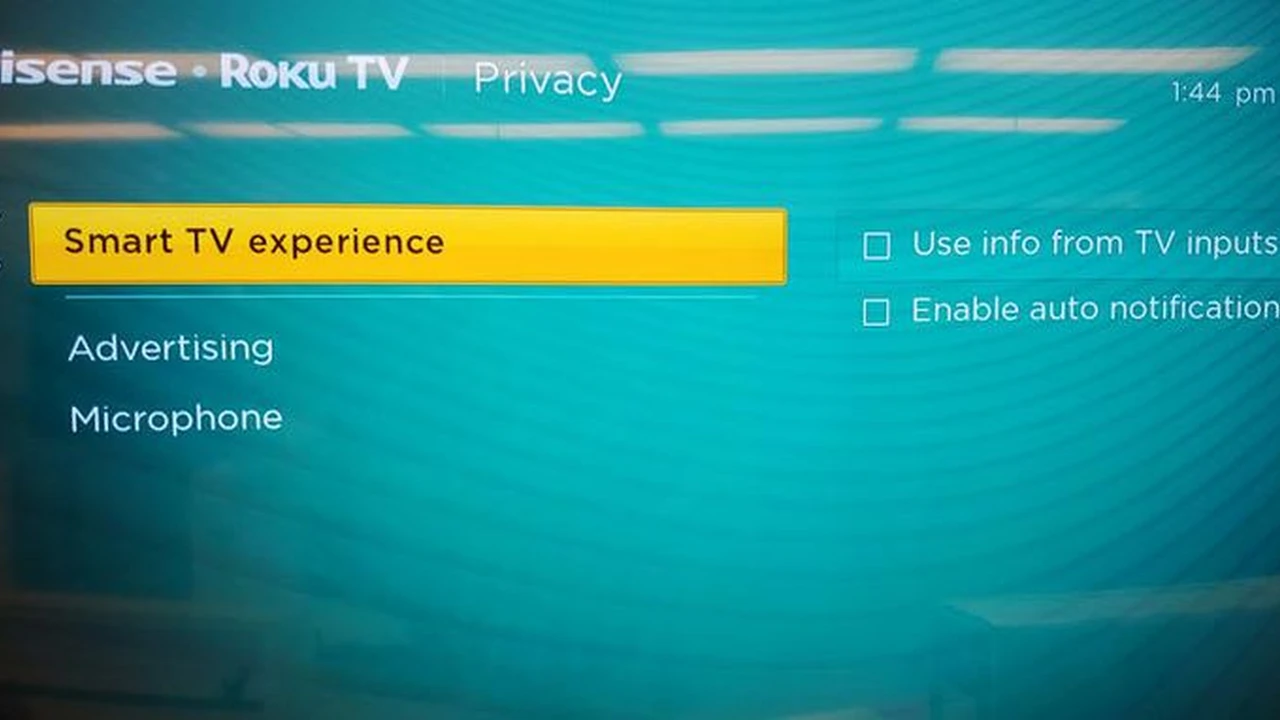
- Roku: Go to ‘Settings’ > ‘Privacy’ > ‘Smart TV Experience’ and disable ‘Use Info for Smart TV Experience.’
- Vizio: Find ‘Viewing Data’ or ‘Smart Interactivity’ in the System settings.
Disabling ACR is one of the most impactful steps you can take to protect your viewing habits from being tracked.
Control Voice Assistants and Microphones on Smart TVs
Voice assistants like Google Assistant, Amazon Alexa, or proprietary assistants are common in smart TVs. While convenient, they rely on always-on microphones:
- Disable Voice Control: If you don’t use voice commands, disable the feature entirely in your TV’s settings.
- Physical Mute Button: Some TVs have a physical switch to disable the microphone. Use it!
- Review Voice Data: Some platforms allow you to review and delete past voice recordings. Regularly check these options.
- Unplug When Not in Use: For extreme privacy, consider unplugging your TV when not actively watching, though this is less practical for daily use.
Manage App Permissions and Data Sharing on Smart TVs
Just like on your phone, apps on your smart TV can request various permissions. Be judicious:
- Review App Permissions: Go into your TV’s app settings and review what permissions each app has. Revoke any unnecessary permissions (e.g., a streaming app doesn’t need access to your microphone or location).
- Delete Unused Apps: Remove any apps you don’t use. This reduces the attack surface and potential for data collection.
- Be Wary of Third-Party Apps: Stick to reputable app stores and well-known developers. Unofficial apps can be a source of malware or excessive data collection.
Disable Personalized Advertising and Tracking on Smart TVs
Most smart TVs have settings specifically for personalized advertising. Turn these off:
- Limit Ad Tracking: Look for options like ‘Limit Ad Tracking’ or ‘Opt out of interest-based ads’ in your TV’s privacy or general settings.
- Reset Advertising ID: Some TVs allow you to reset your advertising ID, which can help disassociate your TV from past collected data.
Software Updates and Physical Security for Smart TVs
Maintaining your TV’s software and physical environment is also key to security.
Regular Software and Firmware Updates for Smart TVs
Software updates are not just about new features; they often include critical security patches that fix vulnerabilities. Enable automatic updates if available, or regularly check for them manually:
- Enable Automatic Updates: Most smart TVs offer an option for automatic software updates. Ensure this is turned on.
- Manual Checks: Periodically go into your TV’s settings (usually under ‘Support’ or ‘About’) to manually check for and install any pending updates.
Physical Security and Port Management for Smart TVs
Don’t overlook the physical aspects of security:
- Unused Ports: If you have unused USB ports, consider covering them with tape to prevent unauthorized physical access or the insertion of malicious devices.
- HDMI-CEC: While convenient, HDMI-CEC (Consumer Electronics Control) allows connected devices to communicate. Be aware of what devices are connected and their potential interactions.
- Secure Mounting: If your TV is wall-mounted, ensure it’s securely fastened to prevent theft or tampering.
Advanced Smart TV Security Measures and Tools
For those seeking an extra layer of protection, consider these advanced steps.
Using a VPN with Your Smart TV for Enhanced Privacy
A Virtual Private Network (VPN) encrypts your internet traffic and masks your IP address, making it much harder for third parties to track your online activity. While many smart TVs don’t natively support VPN apps, there are workarounds:
- Router-Level VPN: The most effective method is to install a VPN directly on your Wi-Fi router. This protects all devices connected to that router, including your smart TV, without needing individual app installations.
- VPN-Compatible Smart TV Boxes: Devices like the Nvidia Shield TV Pro (Android TV) allow direct VPN app installation.
- PC/Mac as a VPN Hotspot: You can share a VPN connection from your computer to your smart TV, though this is less convenient.
Recommended VPNs for Smart TV (Router-Level or Compatible Devices):
- ExpressVPN: Known for its excellent speeds, strong encryption, and user-friendly router setup. Compatible with a wide range of routers.
- NordVPN: Offers robust security features, a vast server network, and good performance. Also supports router installation.
- Surfshark: A budget-friendly option with unlimited simultaneous connections, making it great for protecting all smart devices. Good router support.
Pricing (Approximate Monthly, Billed Annually):
- ExpressVPN: $6.67 – $8.32
- NordVPN: $3.29 – $4.99
- Surfshark: $2.49 – $3.99
Use Cases: Router-level VPNs are ideal for protecting all smart devices, bypassing geo-restrictions for streaming, and adding an extra layer of anonymity to your smart TV’s internet traffic.
DNS Filtering and Ad Blockers for Smart TVs
DNS (Domain Name System) filtering can block known tracking domains and ads at the network level, preventing them from even reaching your smart TV.
- Pi-hole: A popular open-source solution that you can run on a Raspberry Pi. It acts as a DNS sinkhole, blocking ads and trackers for all devices on your network.
- AdGuard DNS: A free public DNS service that blocks ads and trackers. You can configure your router to use AdGuard DNS.
- NextDNS: A customizable DNS service that allows you to block ads, trackers, and malicious domains. Offers more granular control than AdGuard DNS.
Pricing:
- Pi-hole: Hardware cost (Raspberry Pi, ~$35-$75) + free software.
- AdGuard DNS: Free.
- NextDNS: Free tier for up to 300,000 queries per month, paid plans starting around $1.99/month for unlimited.
Use Cases: Reduces targeted advertising, blocks telemetry data sent by smart TVs, and enhances overall network-wide privacy by preventing connections to known tracking servers.
Network Segmentation for IoT Devices and Smart TVs
For advanced users, network segmentation involves creating separate network segments (VLANs) for different types of devices. This is often done with managed switches or advanced routers.
- IoT VLAN: Create a dedicated VLAN for all your smart home devices, including your smart TV. This isolates them from your main network, preventing them from accessing sensitive devices like your computer or NAS.
- Firewall Rules: Implement strict firewall rules between your IoT VLAN and your main network, allowing only necessary outbound internet access for your smart TV.
Pricing: Requires a managed switch (e.g., TP-Link TL-SG108E for ~$50-$70) or a more advanced router (e.g., Ubiquiti EdgeRouter X for ~$60-$80) and technical expertise.
Use Cases: Provides the highest level of isolation and security for smart TVs and other IoT devices, significantly reducing the risk of a compromised smart TV affecting your entire home network.
Regular Audits and Best Practices for Smart TV Security
Security is an ongoing process, not a one-time setup.
Periodically Review Smart TV Settings and Permissions
Manufacturers often push updates that can reset privacy settings or introduce new data collection features. Make it a habit to:
- Monthly Check: Once a month, quickly review your TV’s privacy and security settings to ensure nothing has changed without your knowledge.
- App Audit: Check app permissions and delete any unused apps.
Consider a Streaming Stick or Box for Enhanced Privacy
If your smart TV’s built-in operating system is too intrusive or lacks sufficient privacy controls, consider using an external streaming device:
- Apple TV: Generally considered to have stronger privacy protections than many smart TV platforms.
- Roku Streaming Stick/Box: While Roku TVs have ACR, the standalone devices offer more control over data collection, especially if you disable personalized ads.
- Nvidia Shield TV Pro: An Android TV box that allows for VPN installation and offers a more customizable experience.
By using an external device, you can often bypass the smart features of your TV entirely, effectively turning it into a ‘dumb’ display and relying on the privacy controls of your chosen streaming box.
Disconnect Your Smart TV from the Internet When Not in Use
For ultimate privacy, if you primarily use your smart TV for watching content from external sources (like a Blu-ray player or a gaming console) and rarely use its smart features, consider disconnecting it from the internet. You can do this by:
- Unplugging the Ethernet Cable: If connected via wired Ethernet.
- Forgetting the Wi-Fi Network: In your TV’s network settings, ‘forget’ your Wi-Fi network.
This completely eliminates the risk of online data collection and remote snooping, though it sacrifices the convenience of streaming apps.
Final Thoughts on Smart TV Security and Privacy
Securing your smart TV against snooping requires a proactive approach. By understanding the risks, diligently configuring privacy settings, and employing advanced tools like VPNs or DNS filters, you can significantly reduce your digital footprint and protect your viewing habits. Remember, your smart TV is a powerful device, and taking control of its privacy settings is an essential step in safeguarding your overall digital privacy in the connected home.